
4.2 How to create a coupon
The benefit, how many times it can be used and its image.
-
1
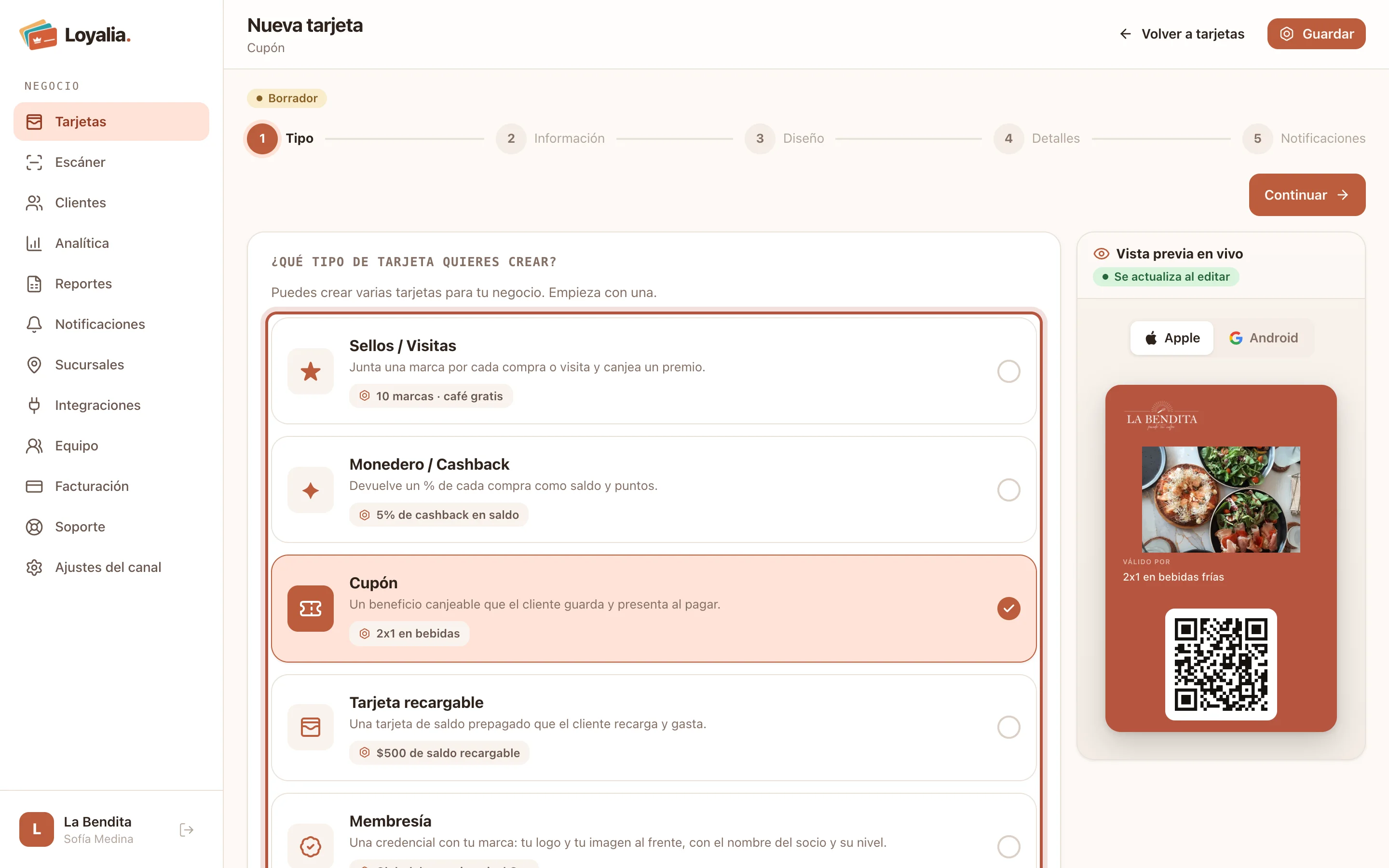
Choose Coupon
In Cards tap New card, choose Coupon and tap Continue.
Web dashboard 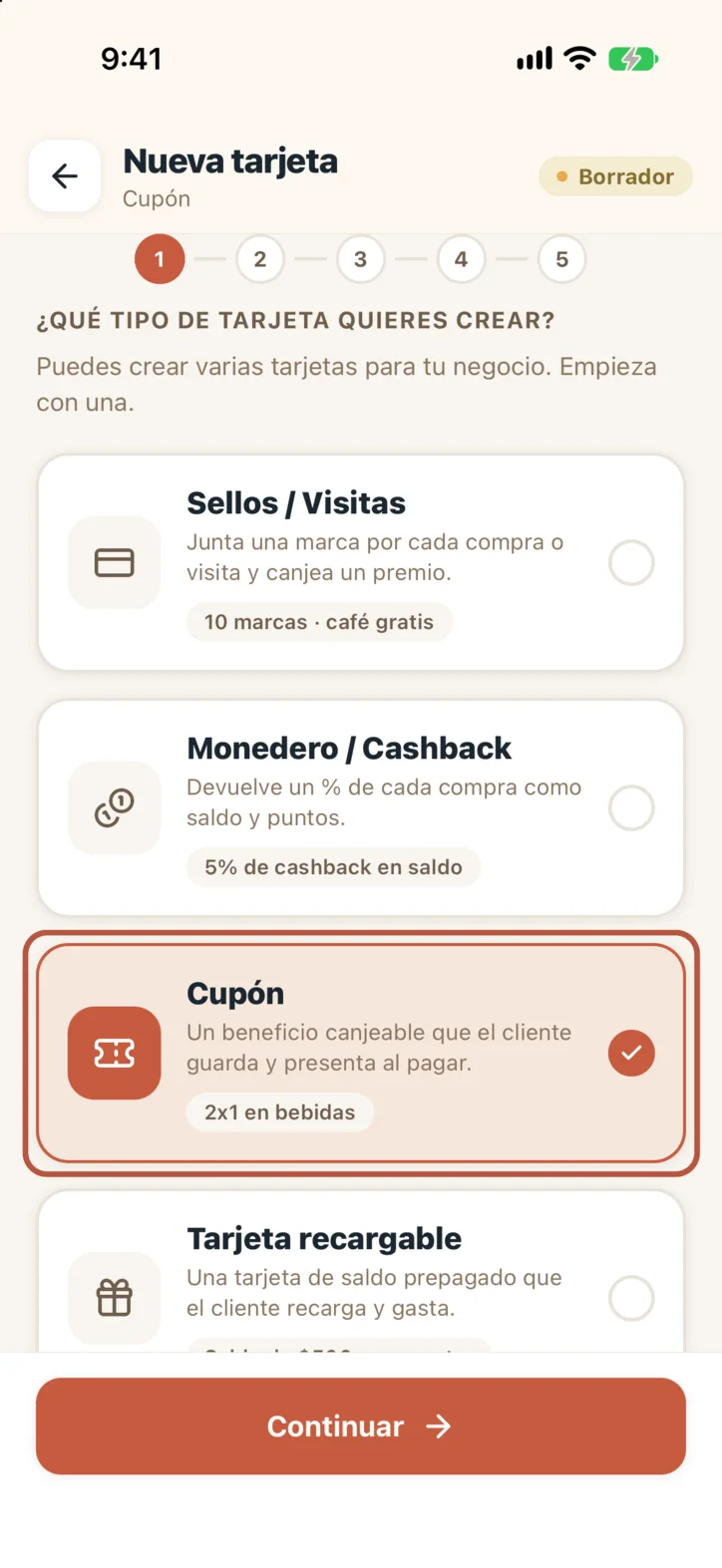
App -
2
Write the benefit
Name the card and describe what your customer gets in the benefit field: "2-for-1 on cold drinks", "buy 3 pay 2".
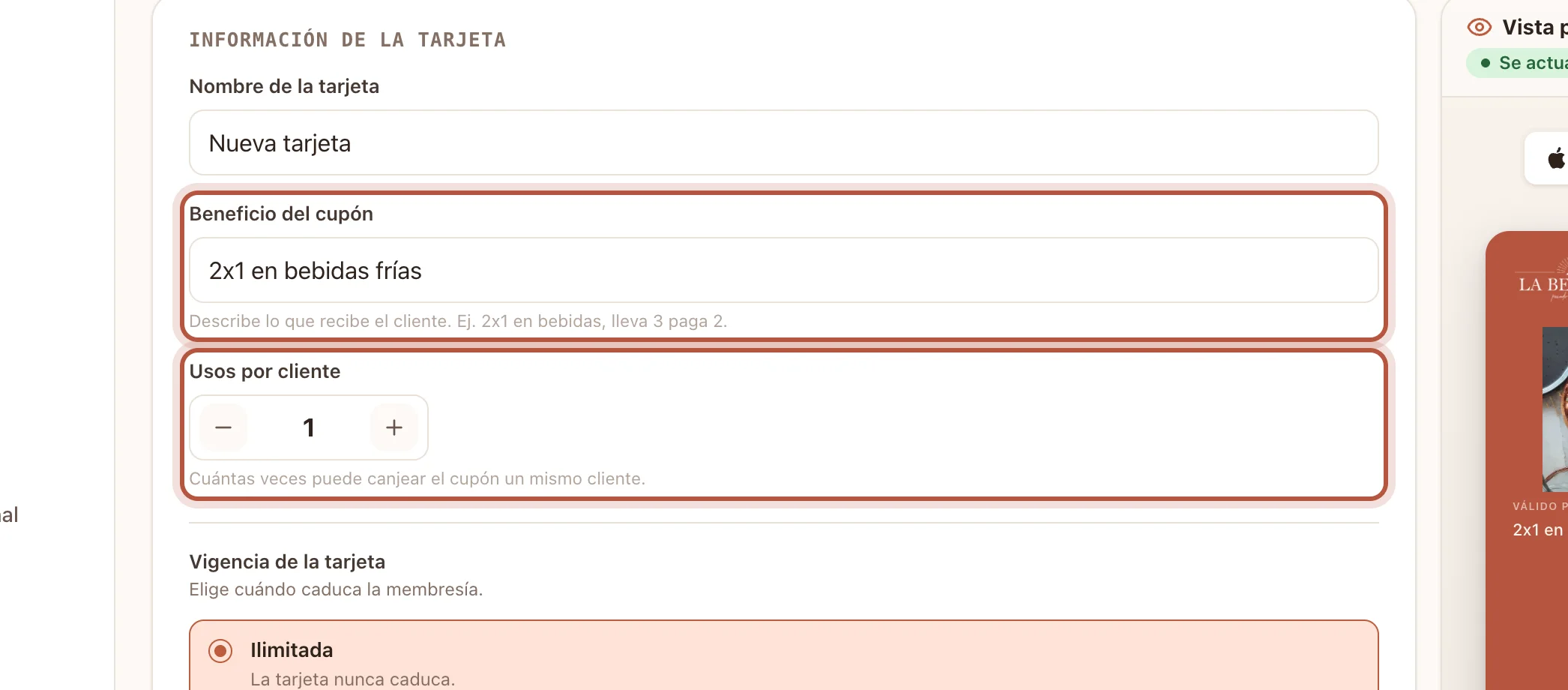
Web dashboard Be specific. "10% off your whole bill" reads better than "special discount".
-
3
Set the uses per customer
In Uses per customer choose how many times the same person can redeem it. One is most common.
-
4
Give it an expiry date
In Card validity choose Fixed date if the coupon is for a date, such as the end of a promotion. More options in 2.9 Card expiry and renewal.
-
5
Add the coupon image
In Design, the Coupon image fills the full width of the Wallet card. A photo of your product works great. The rest of the design is as in 2.11 How to design your stamp card.
-
6
Turn it on and share it
Tap Go to card, switch on Card active and share the link or the QR (2.14 How to turn on and share your card).