
3.2 How to create a wallet card
From the New card button to a live wallet card ready to share.
-
1
Open Cards and tap New card
In the left menu go to Cards and tap New card.
-
2
Choose Wallet / Cashback
Tap Wallet / Cashback and then Continue.
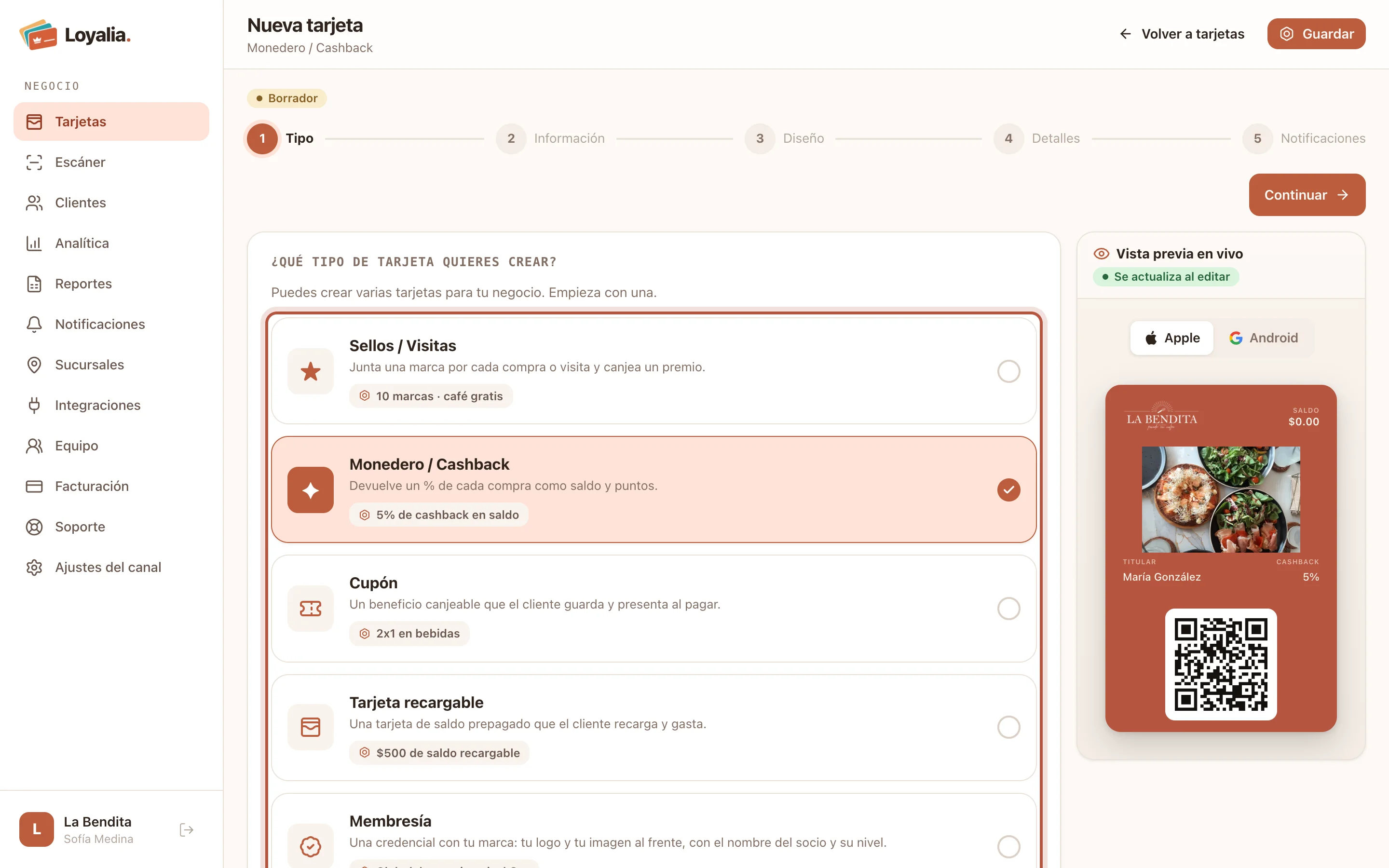
Web dashboard 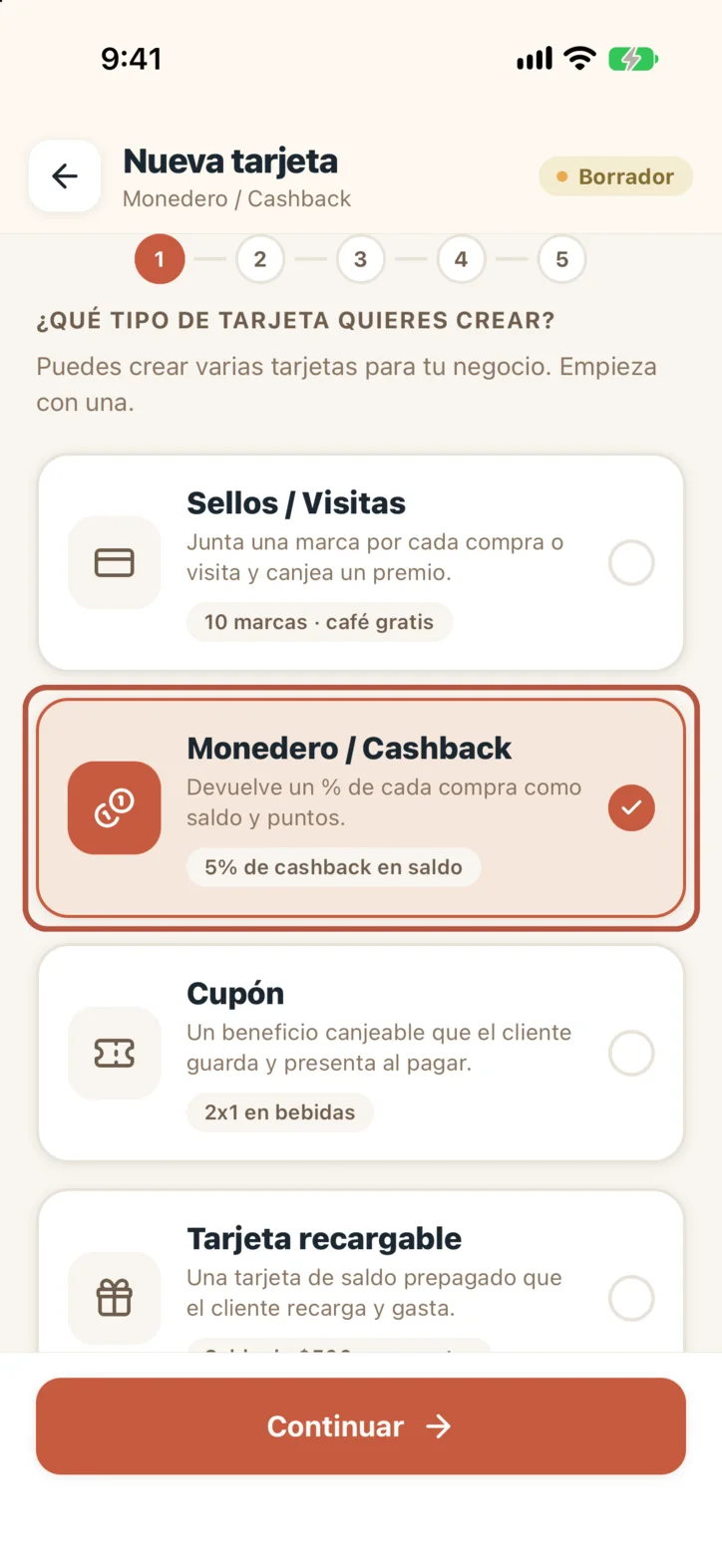
App Once the card is live, its type can't be changed from the dashboard.
-
3
Name it and set the percentage
In Card name write what your customer will see, for example "La Bendita Wallet". In Cashback (%) write how much you give back on each purchase: any value from 1 to 100.
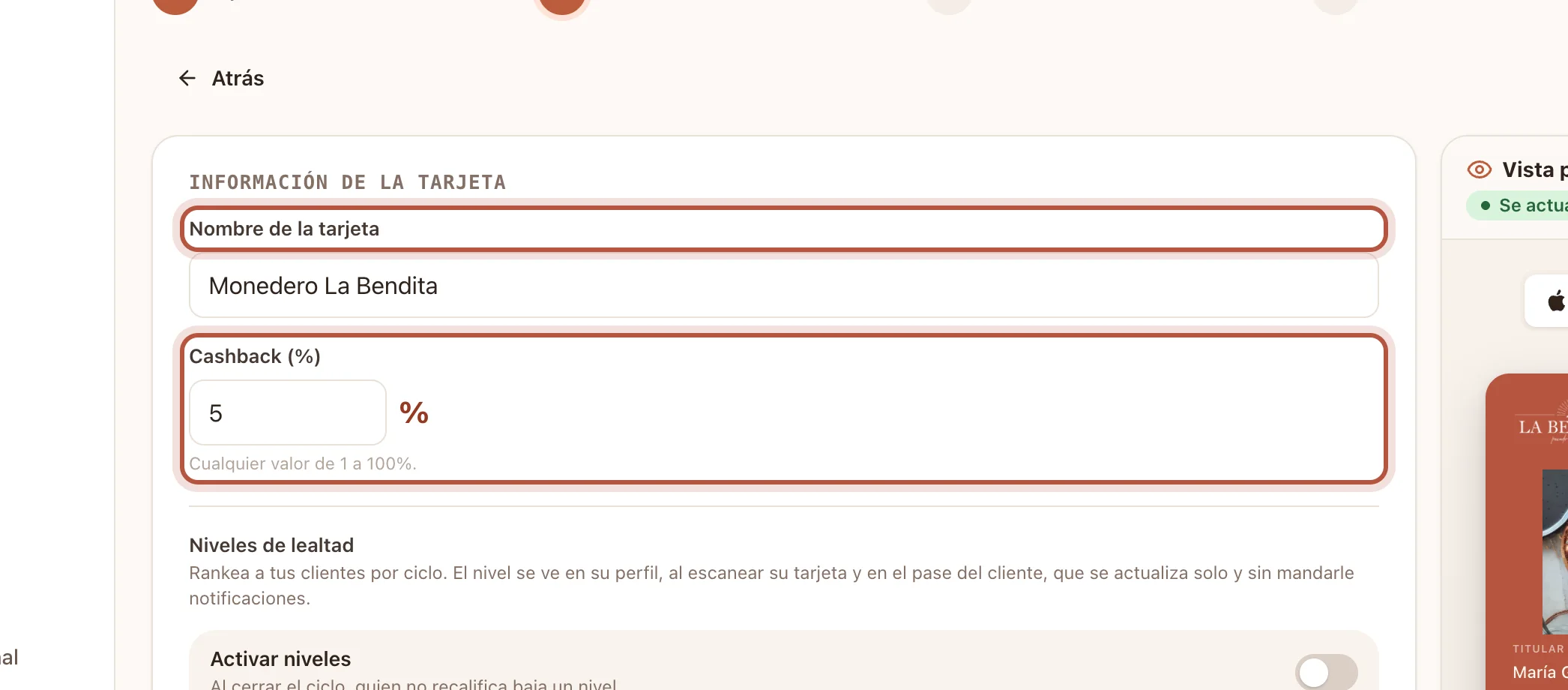
Web dashboard -
4
Choose expiry, levels and sign-up fields
They're the same options as on the stamp card: 3.3 Wallet card validity and renewal, 2.7 How to use loyalty levels (Bronze, Silver, Gold) and 2.10 What you ask your customers when they sign up. If this is your first wallet card, leave them as they are and tap Continue.
-
5
Design, add details and review notifications
Same as for stamps: 2.11 How to design your stamp card, 2.12 How to add links and information to your card and 2.13 How to set up automatic notifications. On a wallet card, the Purchase / thanks message can tell your customer how much they earned and their new balance.
-
6
Turn it on and share it
Tap Go to card, switch on Card active and share the link or the QR as in 2.14 How to turn on and share your card.