
2.11 How to design your stamp card
Colors, logo, photo and stamp icon so the card looks like your brand.
-
1
Start from a theme
In Brand themes tap one (Manglar, Océano, Selva, Medianoche or Arena) to set all the colors at once, or By industry to see themes made for your kind of business.
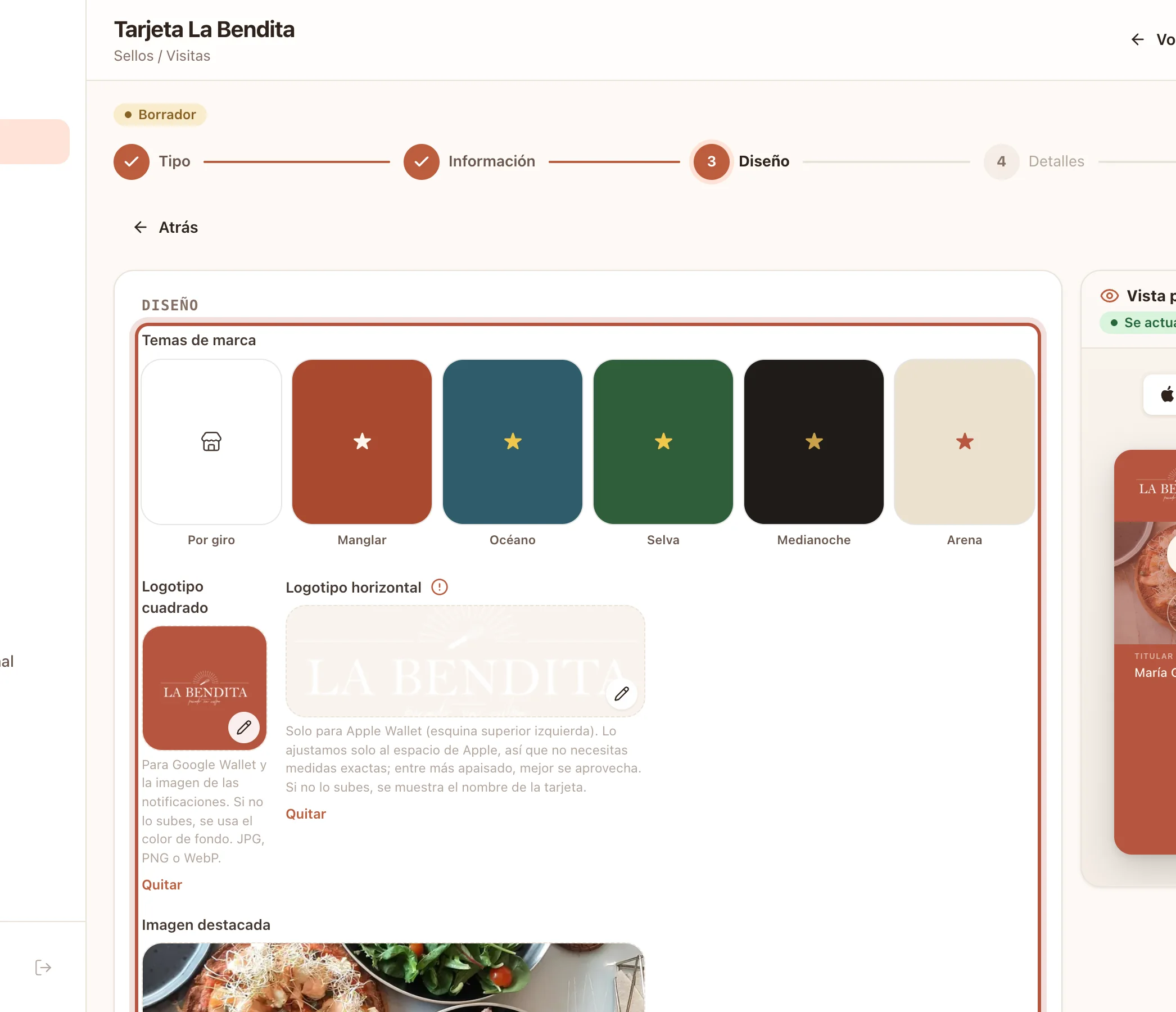
Web dashboard -
2
Upload your logos
The Square logo shows in Google Wallet and in notifications. The Horizontal logo goes in the corner of Apple Wallet. JPG, PNG or WebP.
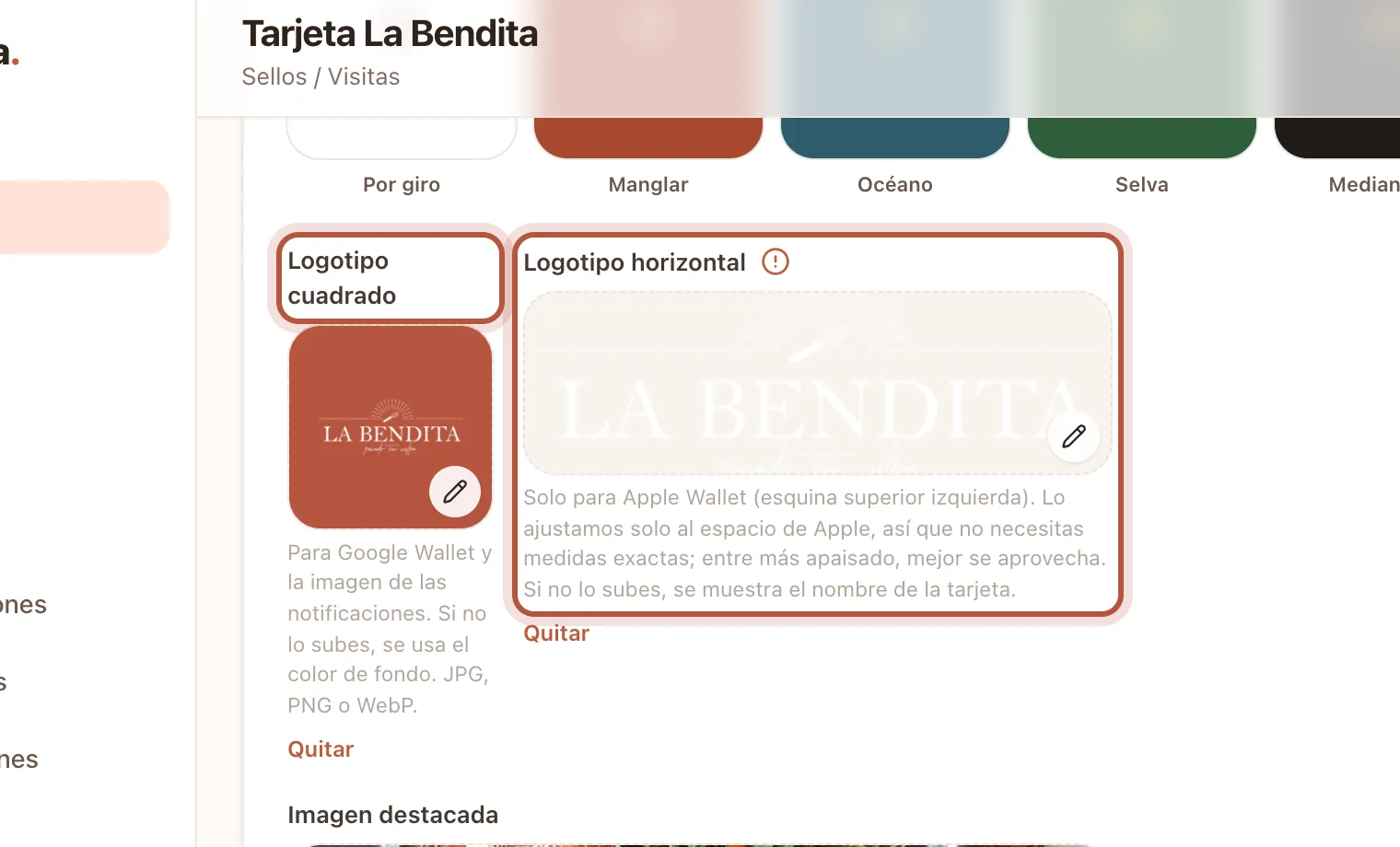
Web dashboard -
3
Add a featured image
In Featured image upload a photo of your place or your product: it sits behind the stamps, on the card and in the Wallet.
-
4
Adjust the colors
Choose the Card background and the Stamp colors. Under the background, Loyalia tells you whether the text is easy to read.
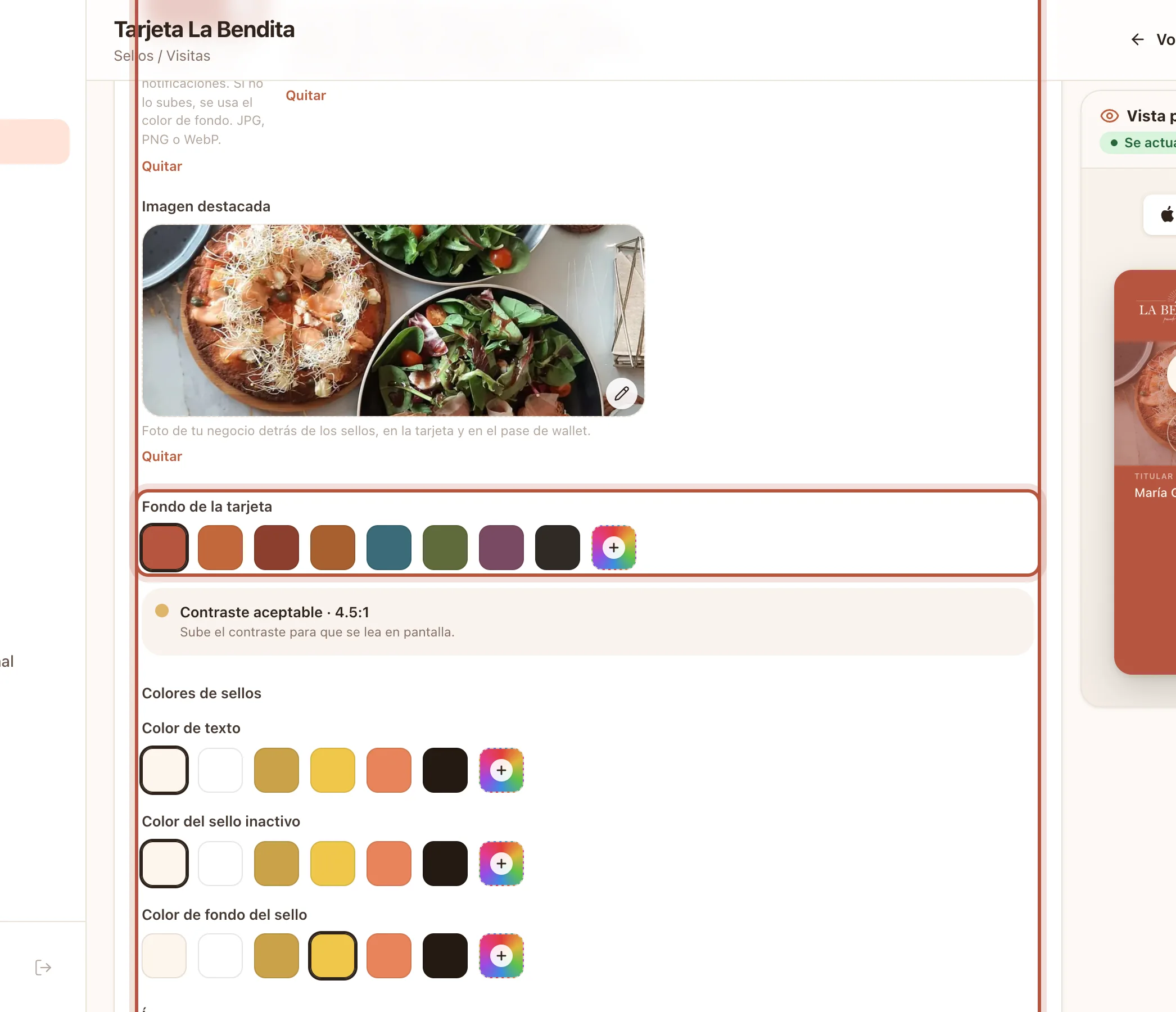
Web dashboard Google Wallet adjusts the text color by itself so it always reads on your background.
-
5
Pick the stamp icon
In Icon pick a shape, or in Stamp images upload your own images for the Empty stamp and the Earned stamp.
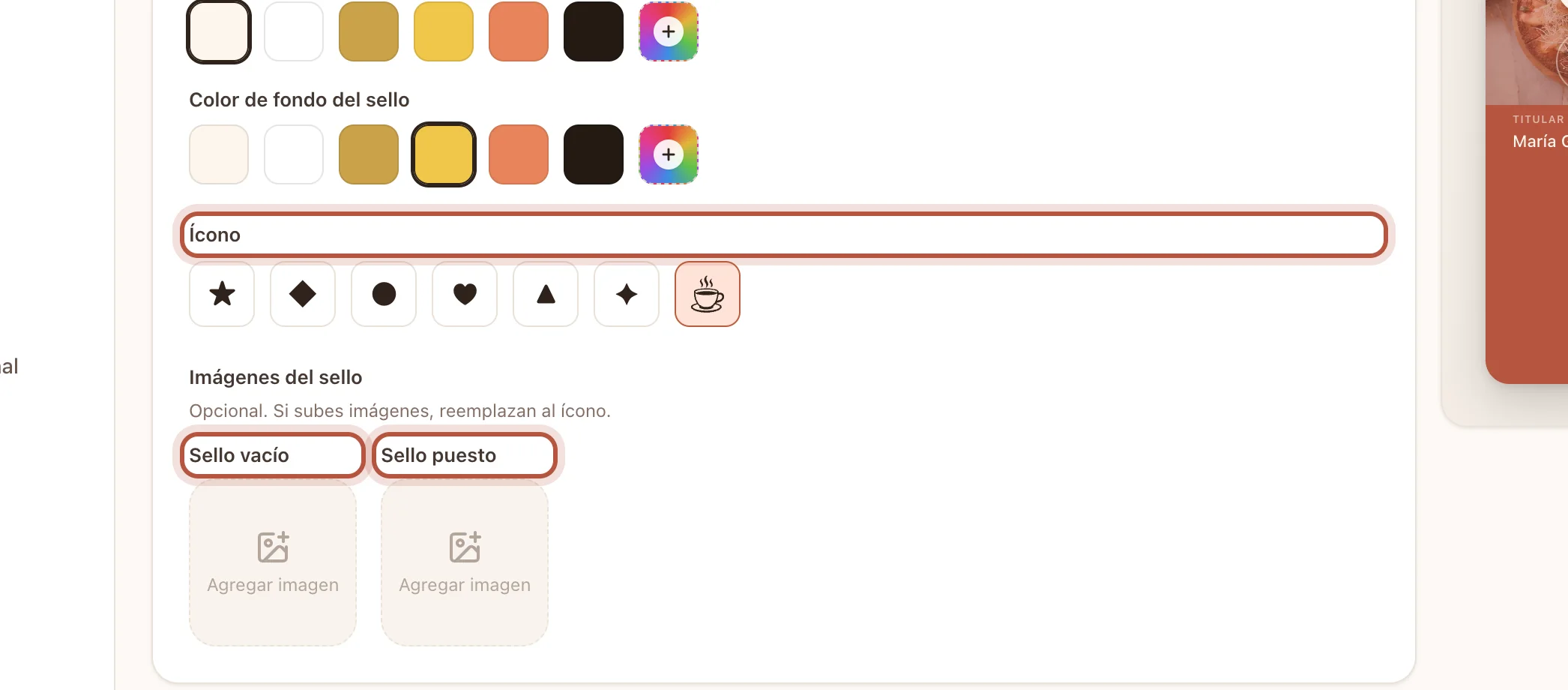
Web dashboard -
6
Check how it looks
In the Live preview switch between Apple and Android to see your card on both phones before saving.