
2.12 How to add links and information to your card
Your Instagram, your website, your hours or your terms, one tap away for your customer.
Web dashboard
App
-
1
Add links
In the Details step, tap Add link. Write the text your customer will see ("Follow us on Instagram") and the link: a website, a phone number or an email.
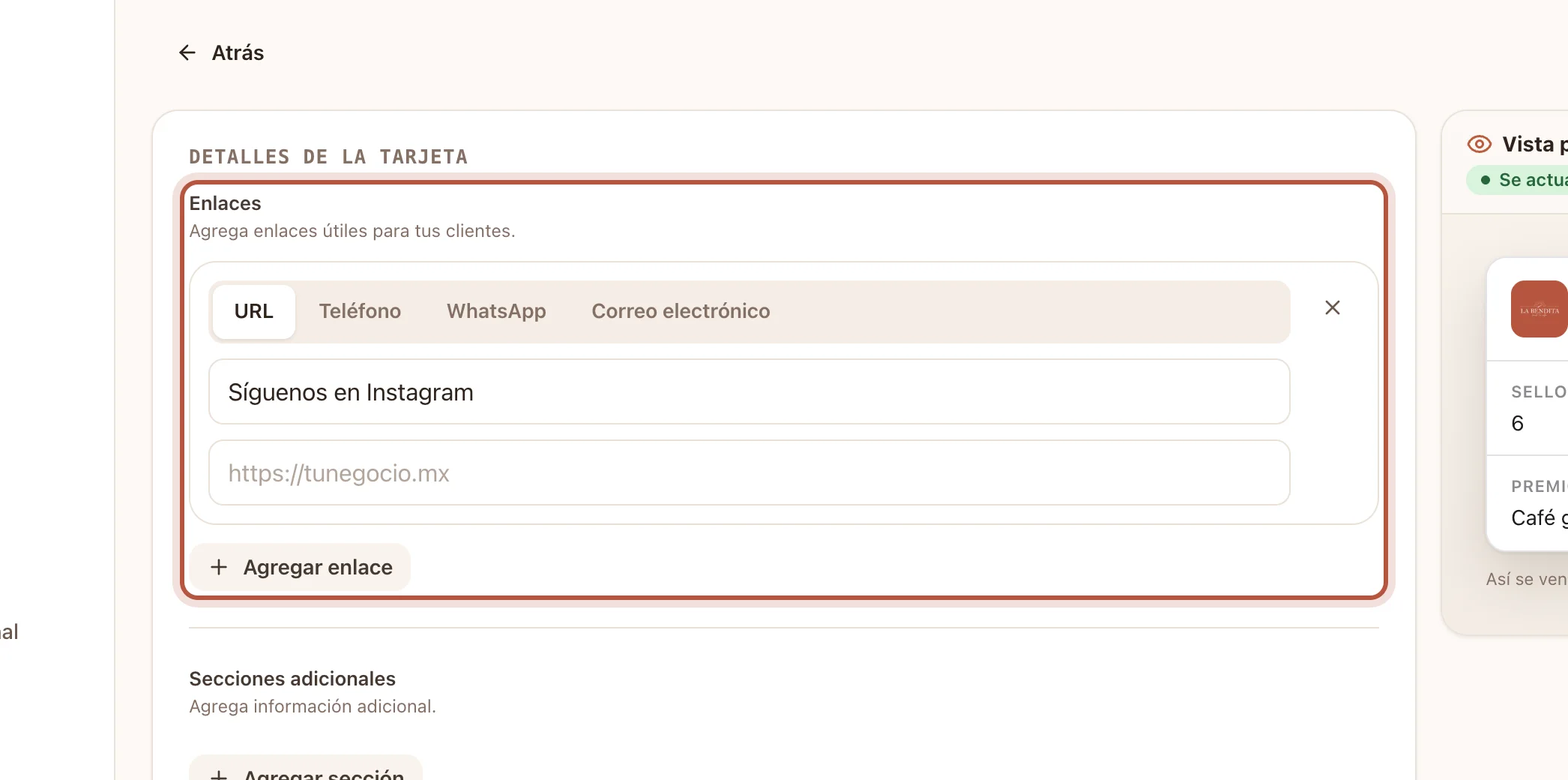
Web dashboard -
2
Add information sections
Tap Add section to add fixed information, such as your opening hours, your address or your terms.
-
3
Where your customer sees it
In Apple Wallet, when they open the card's details; in Google Wallet, below the card. This step's preview shows you how it looks.