
2.13 How to set up automatic notifications
Messages that reach your customer's screen on their own, at the right moment.
They land on your customer's lock screen like any other Wallet notification. Each message shows a preview with your business name while you write it.
-
1
Turn notifications on
In the Notifications step, keep Automatic notifications on.
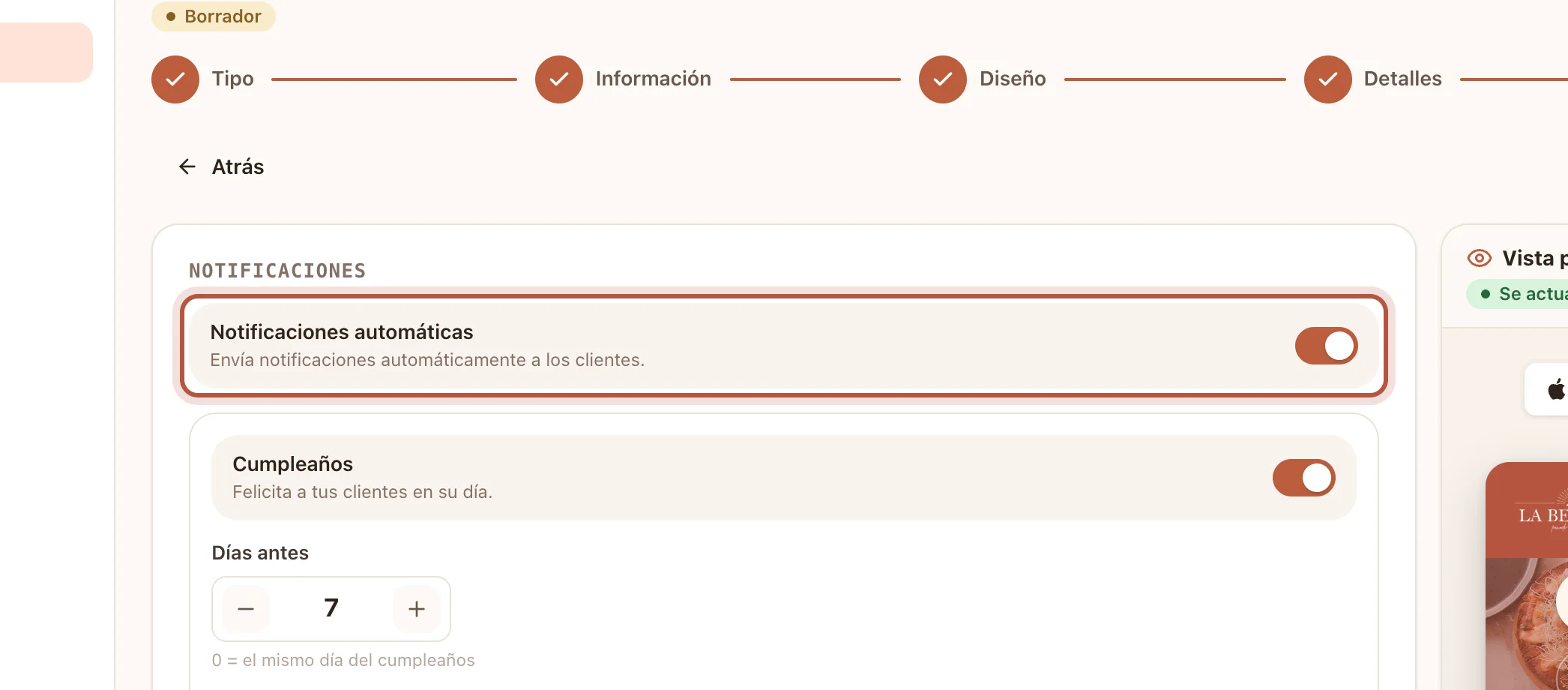
Web dashboard -
2
Birthday
Choose how many Days before it goes out (0 is the same day) and write your message. You need to ask for the birthday at sign-up (2.10 What you ask your customers when they sign up).
-
3
Last visit
Invites back whoever hasn't come in a while. Set the Days since last visit, for example 30.
-
4
Purchase / thanks
Thanks your customer every time you give them a stamp.
-
5
Reward ready
Lets them know their card is full and a reward is waiting.
-
6
Expired card
If your card expires, lets them know when their card has lapsed.
-
7
Geolocated notifications
Show your message when your customer walks near your business. Choose which branches trigger them and write the message. If you have no branches yet, tap Add branch.
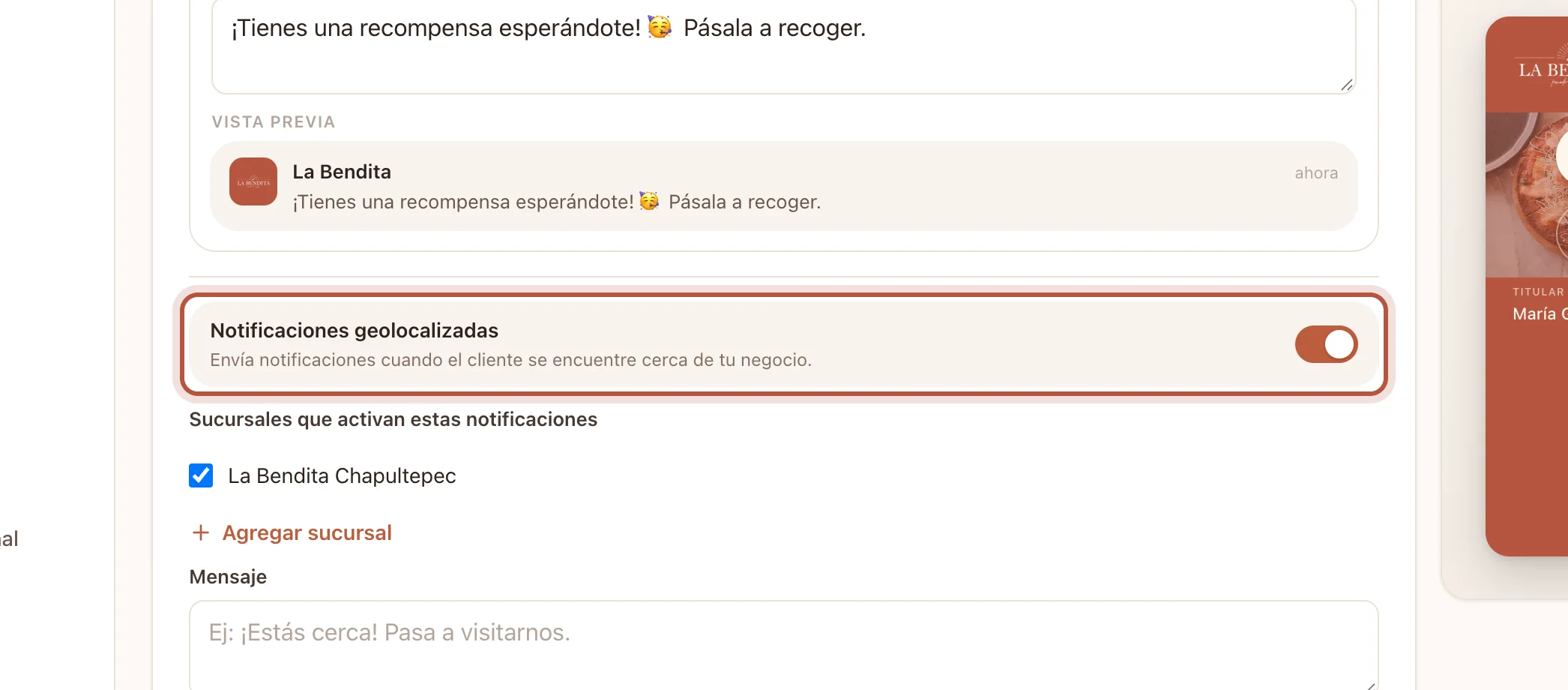
Web dashboard