
2.15 How to give a stamp
What your cashier does on every visit, in seconds.
-
1
Open the Scanner
In the menu go to Scanner. Your team can do it from the dashboard, from the Loyalia app or from the app with their own operator login.
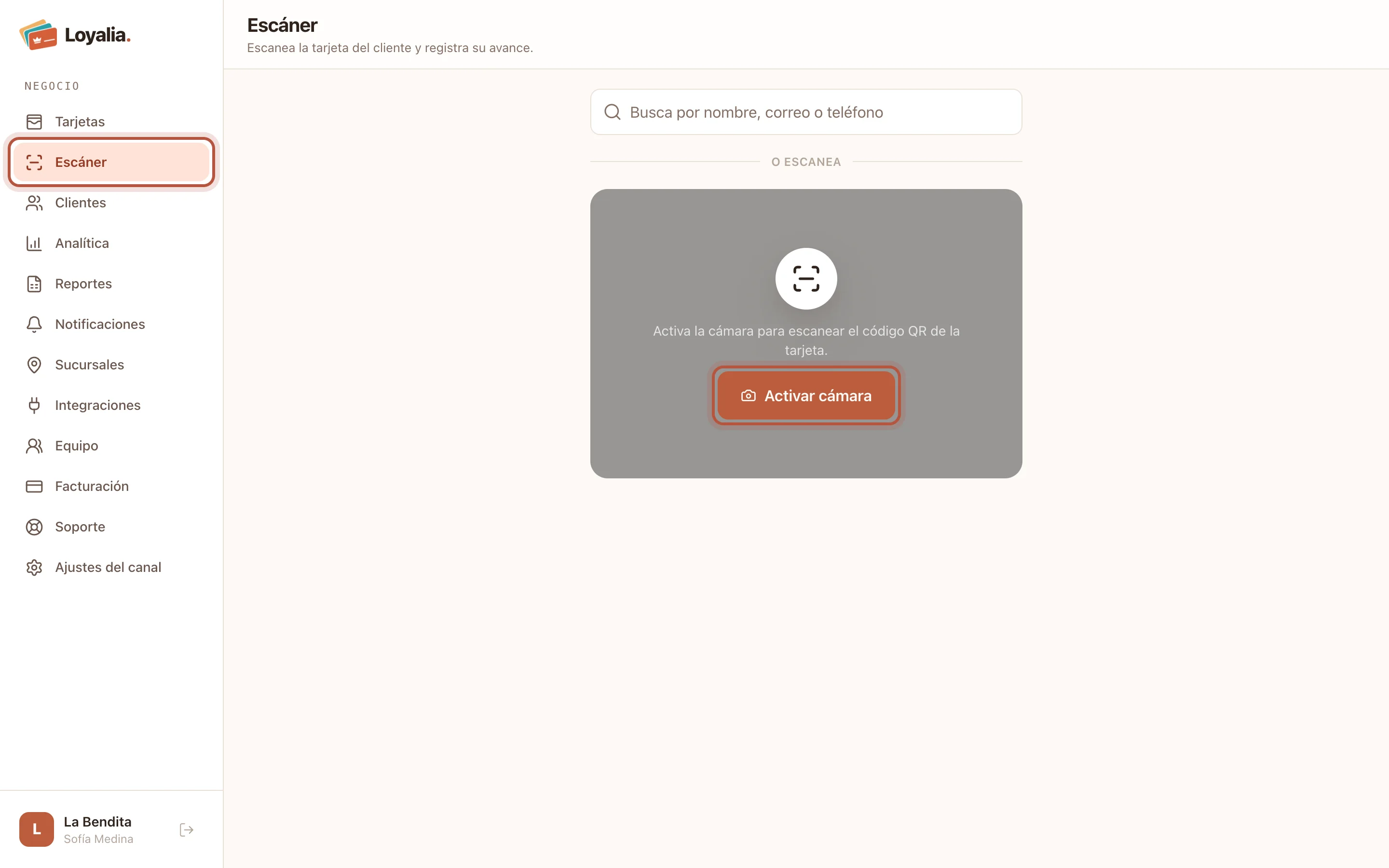
Web dashboard 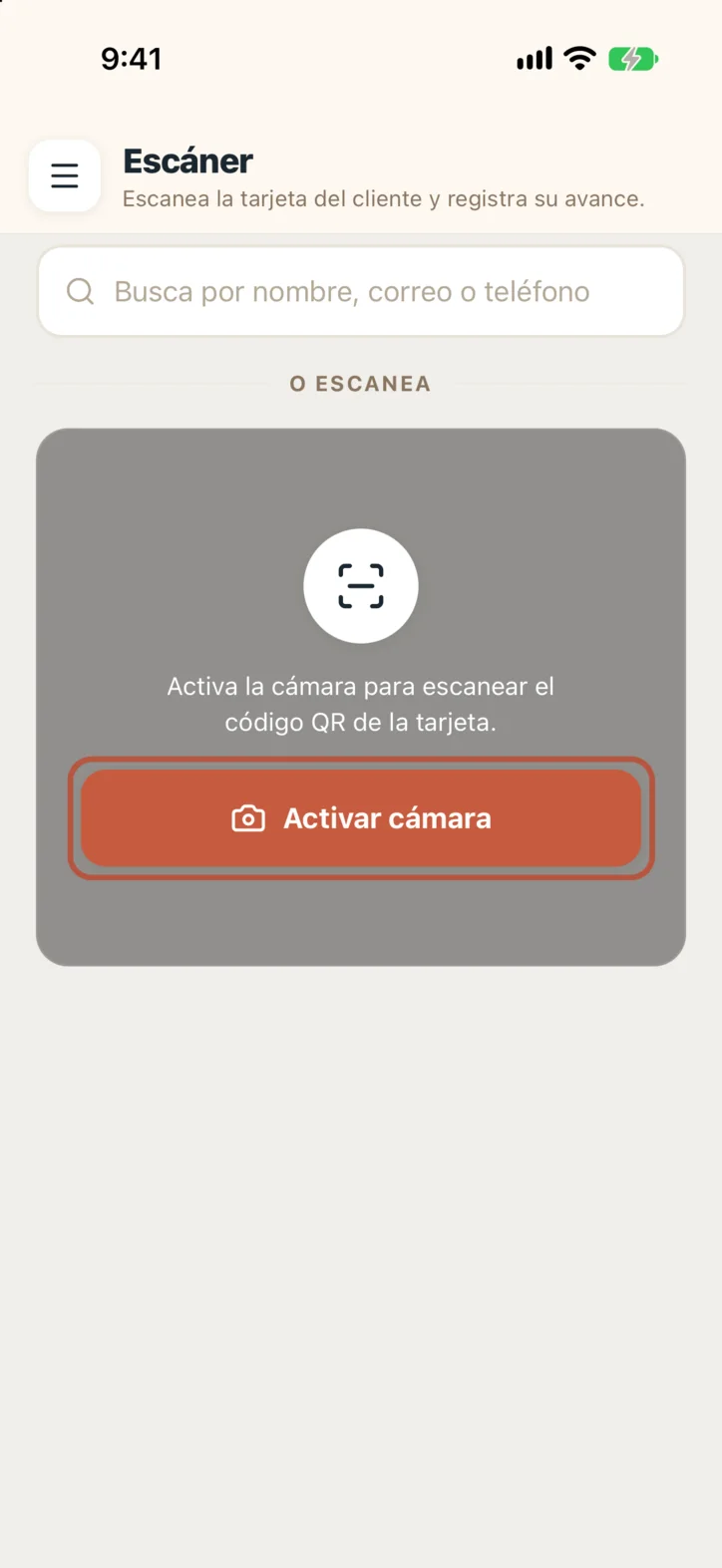
App -
2
Scan your customer's card
Tap Turn on camera and point it at the QR on your customer's phone. If they don't have it at hand, look them up by name or email in Search customer.
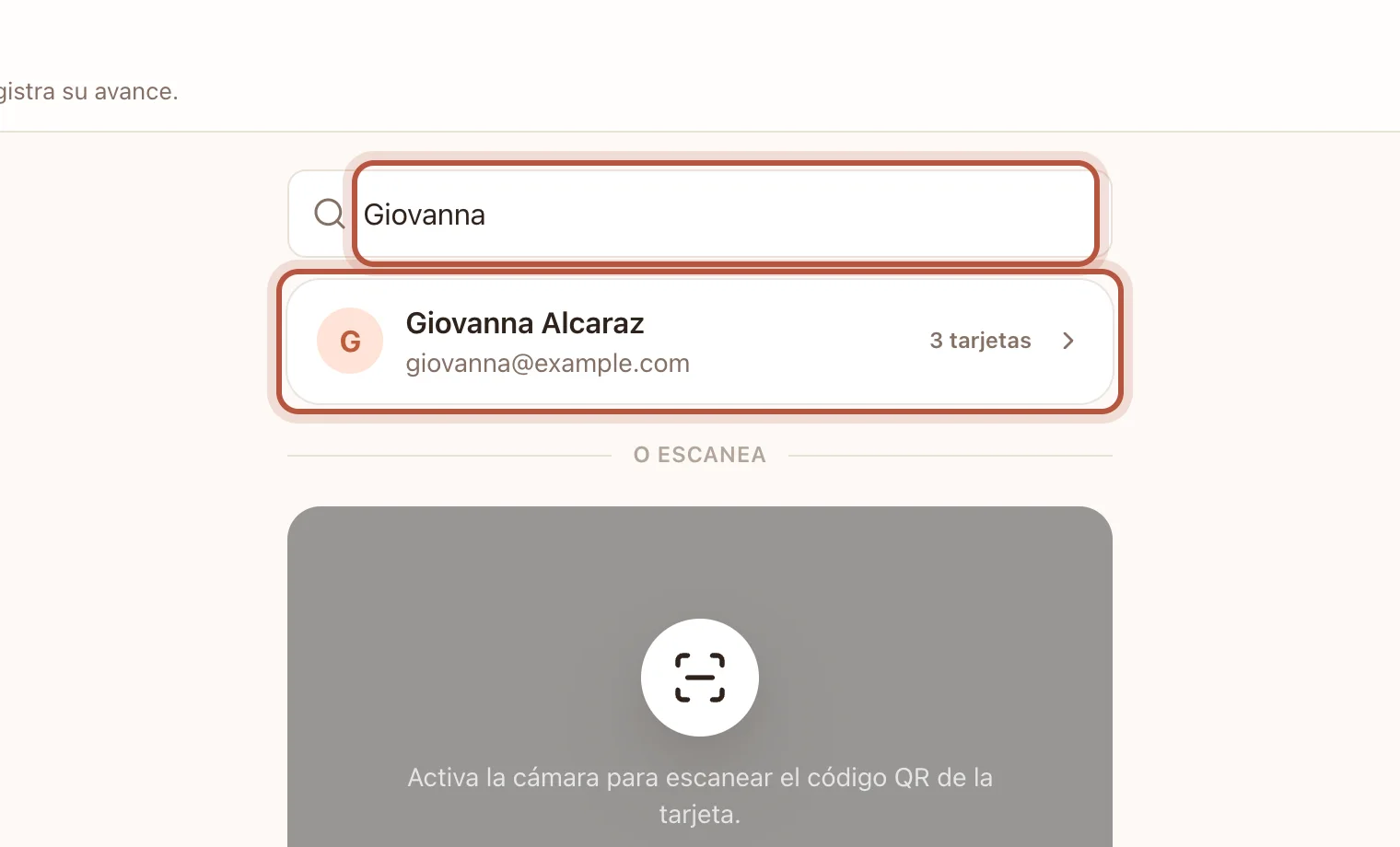
Web dashboard -
3
Enter the amount (optional)
You'll see their card and how many stamps they have. If you want to track how much your customers spend, enter the Purchase amount and, if needed, a Note.
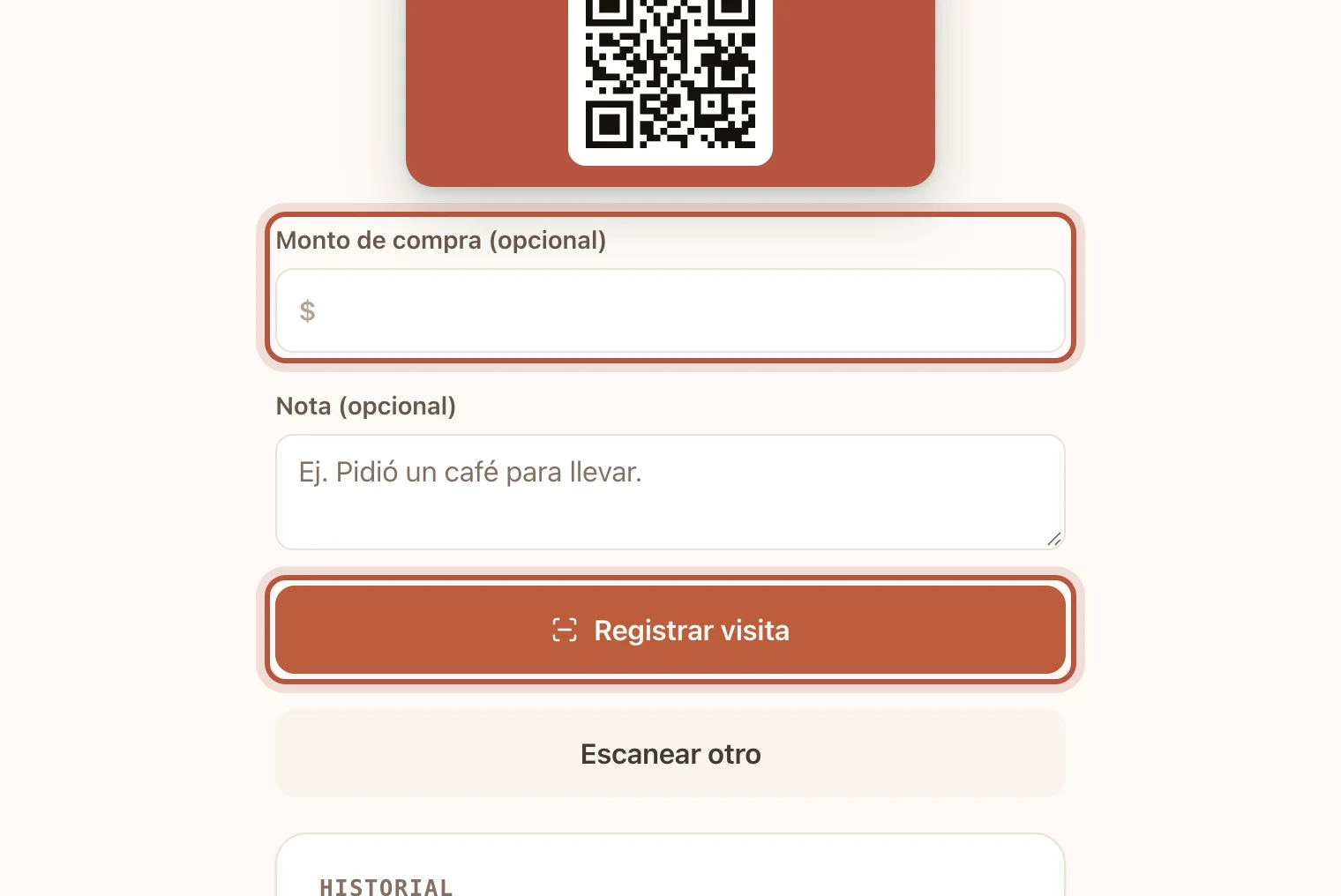
Web dashboard You can make the amount or the note required for each person on your team (7.2 Permissions: what each person can do).
-
4
Tap Record visit
Done: your customer gets a stamp and their card updates on their phone right away. Tap Scan another to serve the next one.
Frequently asked questions
Why won't it let me give another stamp today?
Your card has the Limit 1 stamp per day rule on. You can change it in 2.8 Your stamp card's rules.
I stamped the wrong customer. How do I fix it?
You can delete that entry from the customer's profile. See 2.18 How to fix a mistake: add or remove stamps.